The Google Workspace integration is being depreciated and will no longer be supported as of June 30, 2023. The Google integration is not available to new users.
Note: You must be an Admin of your Google Workspace account to follow this process
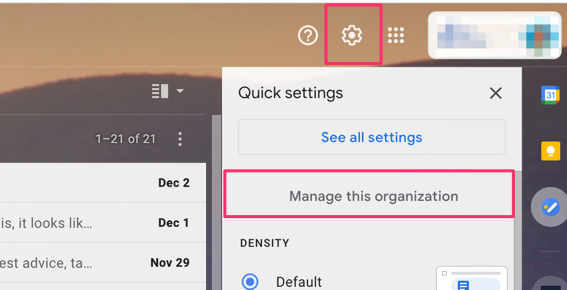
- From your Gmail inbox, click on the gear icon and choose Manage this organization
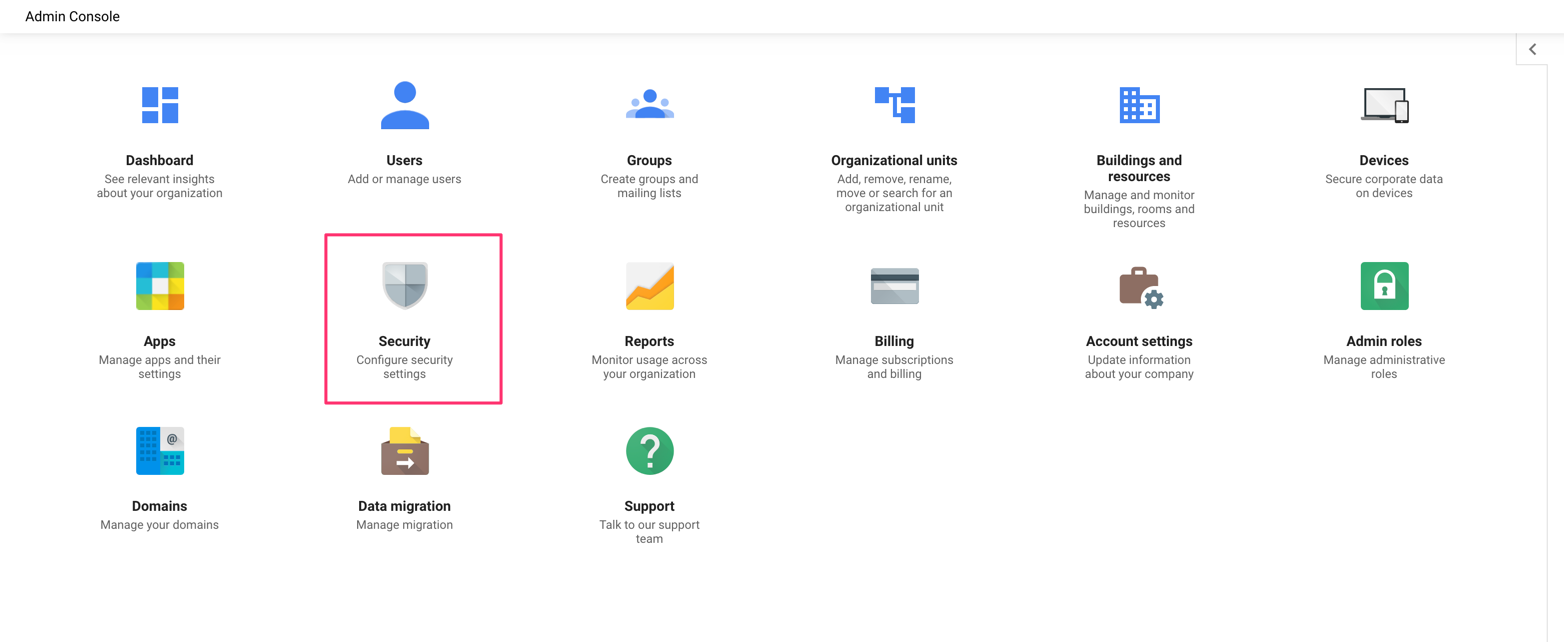
- Login if required and then from the Admin Console, click on Security.
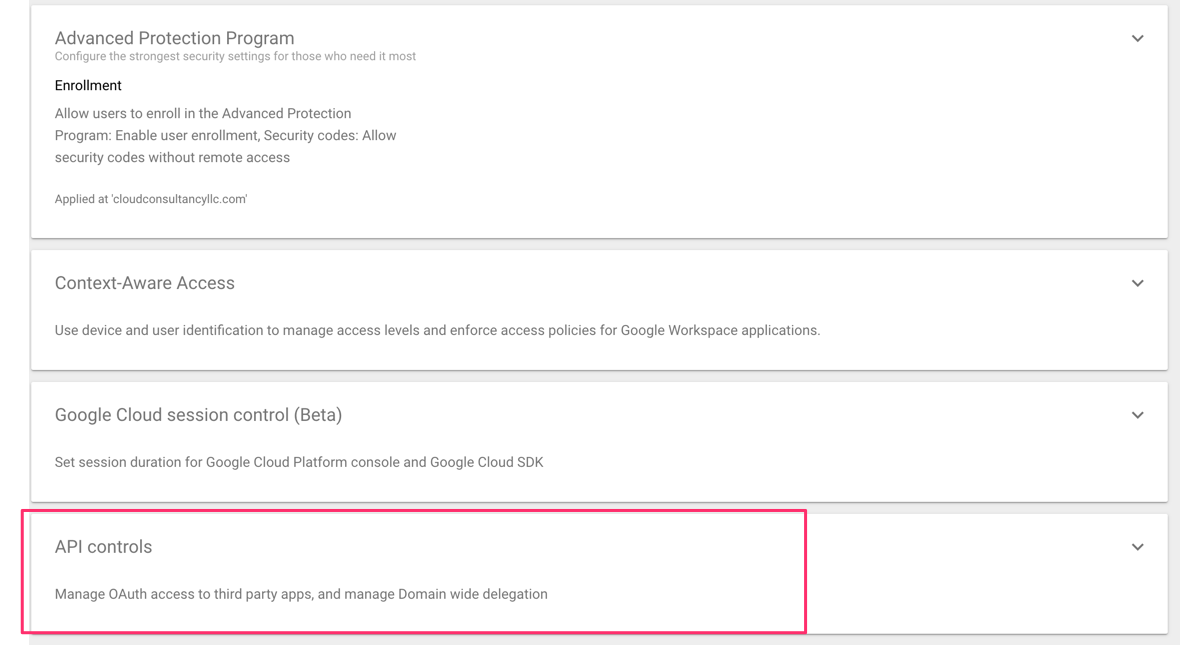
- Scroll down to the bottom, click on API controls.
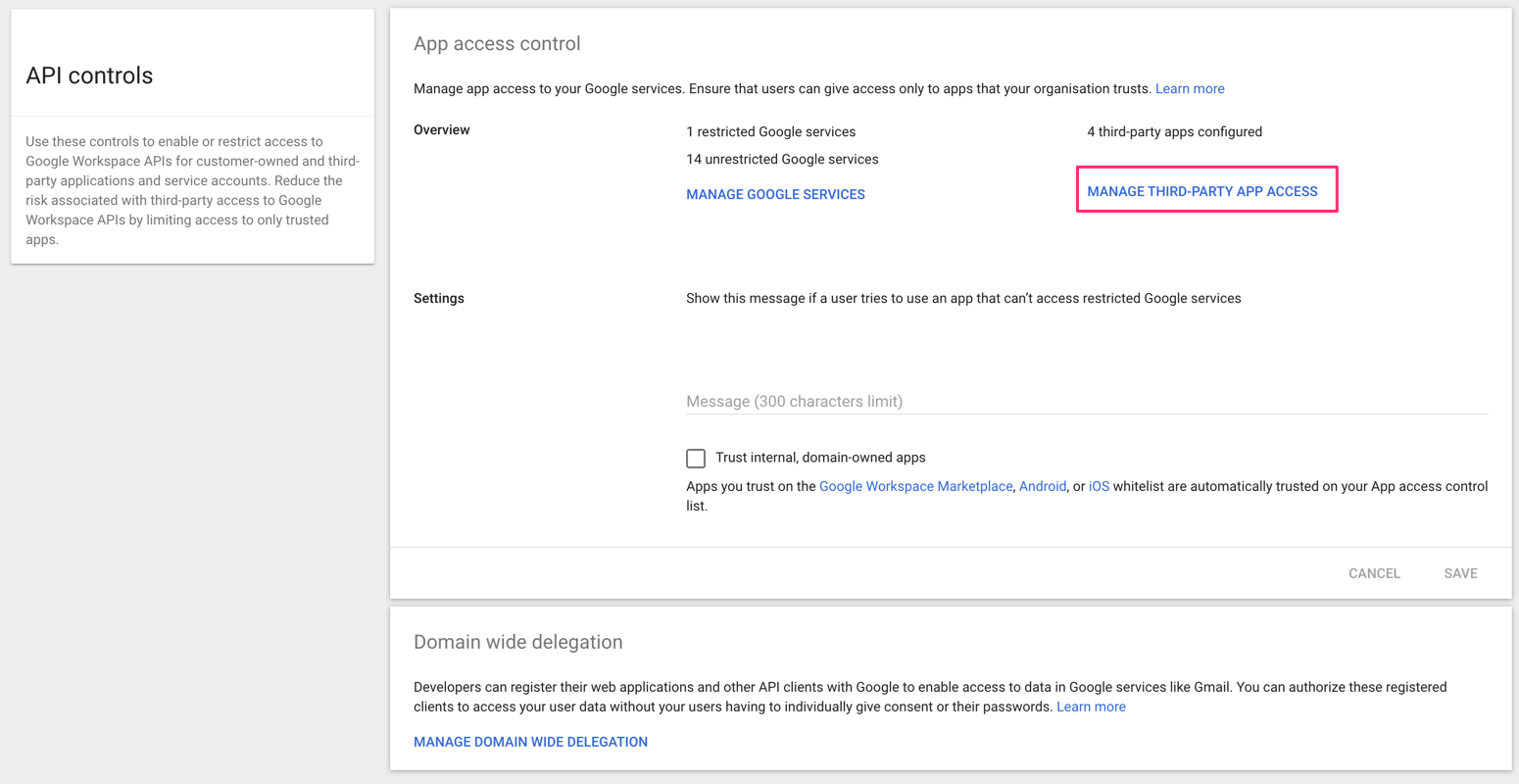
- From the App access control panel, click on MANAGE THIRD-PARTY ACCESS.
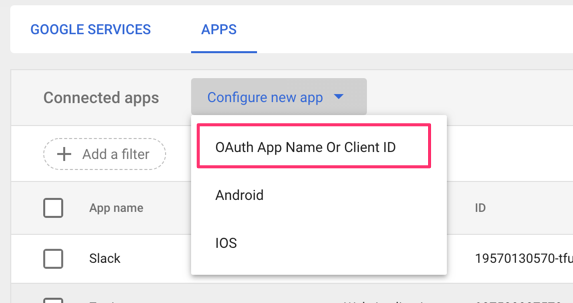
- Click Configure new app and choose OAuth App Name Or Client ID.
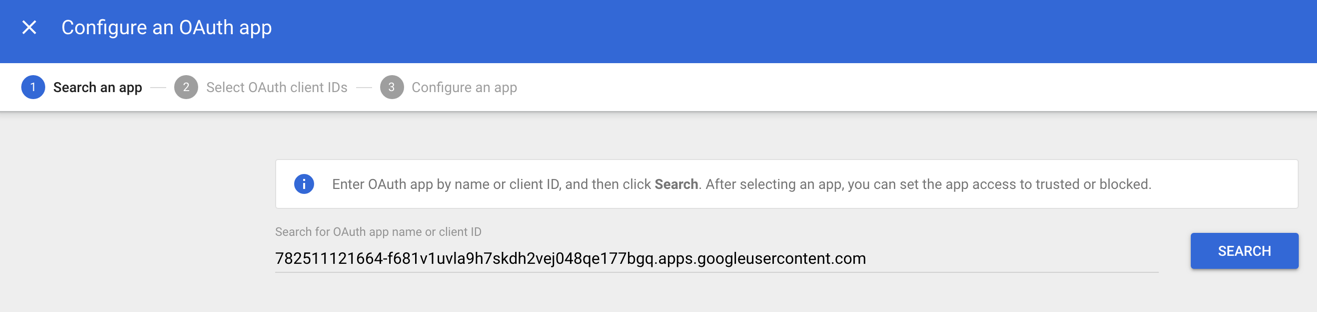
- Paste this Client Id in the field: 782511121664-f681v1uvla9h7skdh2vej048qe177bgq.apps.googleusercontent.com (Do not Search for Aero Workflow - the app that shows up is not the right one).
-
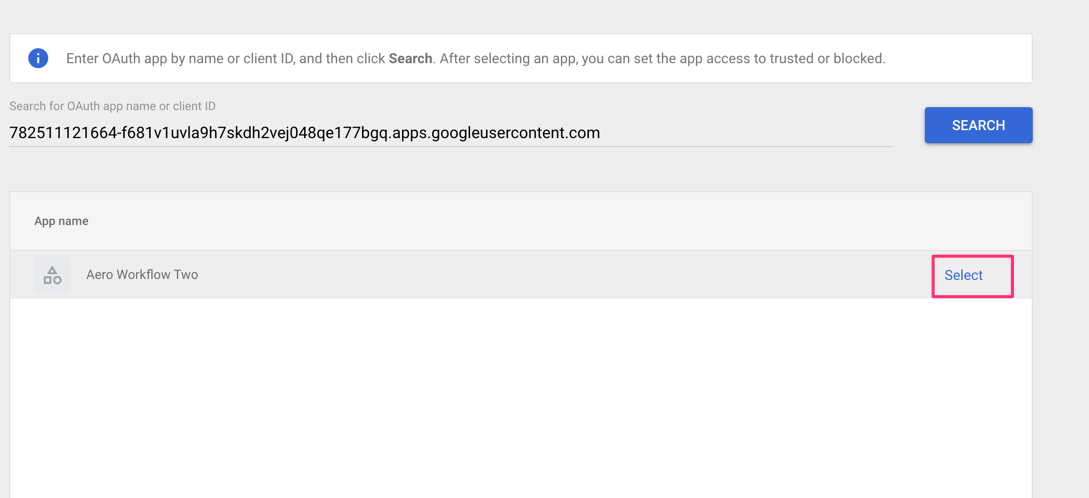
Click on “Aero Workflow Two” and click Select
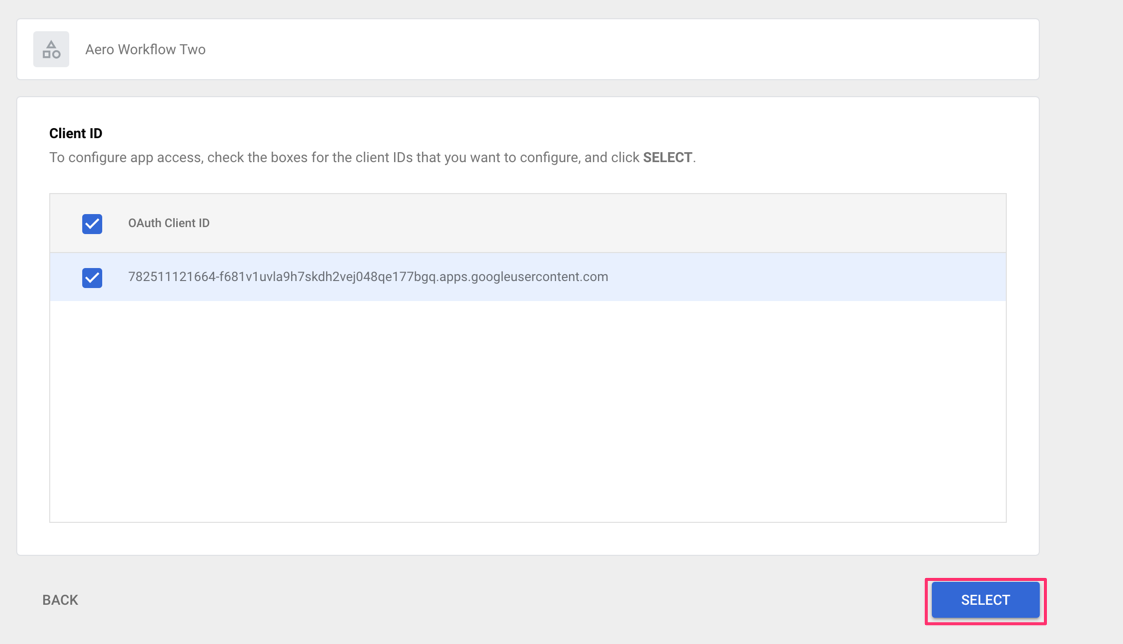
- Check the box next to Aero's Client ID. Both boxes will show up as checked. Click Select.
- Select Trusted and click Configure.
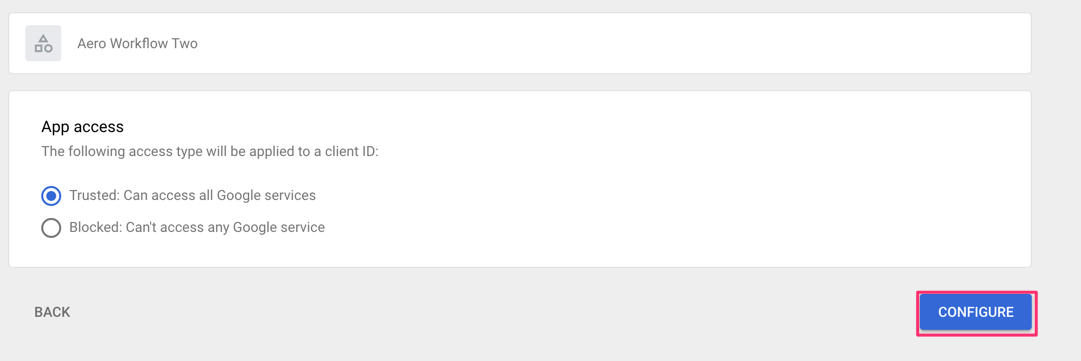
- You should then see Aero Workflow Two listed with your connected Apps (it may have been there before) as “Trusted”

Comments
0 comments
Please sign in to leave a comment.